
Key Takeaways
- The Amazon Request a Review Button allows brand owners to dispatch official, standardized feedback and product review requests directly through Seller Central.
- Review requests via the native Request a Review feature are automatically translated, fully TOS-compliant, and can be triggered between 5 and 30 days post-delivery.
- Automating the native Request a Review API via third-party software scales feedback acquisition across high FBA, FBM, and B2B order volumes without manual effort.
For brand owners operating on Amazon, building verified customer reviews without violating Amazon’s strict Buyer-Seller Messaging policies remains a central growth challenge.
Establishing review velocity directly impacts conversion rates, organic search rankings, and paid campaign performance.
The Amazon Request a Review Button serves as an official, 100% TOS-compliant feature inside Seller Central to help FBA, Merchant Fulfilled (FBM), B2B, and Seller Fulfilled Prime merchants capture verified customer reviews at scale.
This masterclass details how to deploy and automate the Request a Review feature within a broader catalog growth strategy under the direction of an eCommerce Fractional CMO.
What is the Amazon Request a Review Button?
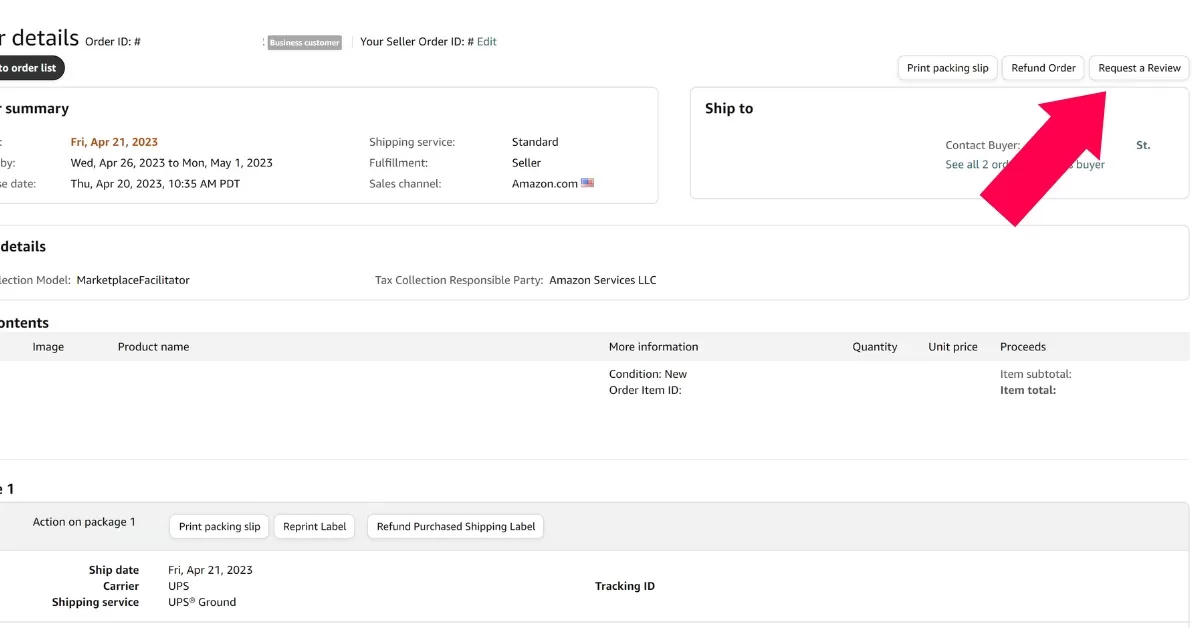
The Amazon Request a Review Button is a native Seller Central feature located on individual order detail pages. Clicking this button dispatches a single system-generated email requesting both seller feedback and a product review for that specific order.
The feature renders directly within Seller Central order headers:

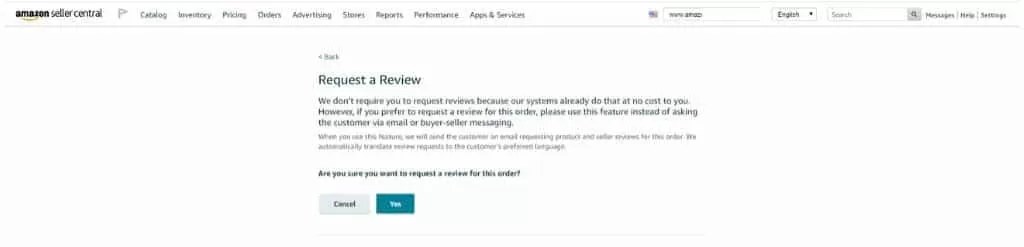
When triggered, Seller Central displays a confirmation modal confirming that Amazon will handle message generation and language translation automatically:
Key Operational Parameters of the Request a Review Button:
- Execution Window: Requests can only be submitted between 5 and 30 days after order delivery.
- Zero Customization: The email uses Amazon’s standardized template and cannot be customized with custom text, branding, or external links.
- Automatic Translation: Messages automatically translate into the buyer’s preferred marketplace language.
- Single Dispatch: Amazon allows only one review request per order ID; follow-up dispatches are blocked.
Primary Goals of the Request a Review Feature:
- Capture verified Amazon product reviews to elevate detail page conversion rates.
- Capture seller account feedback ratings to strengthen overall account health and Buy Box rotation eligibility.
Expanding verified customer review volume directly drives organic search indexing (Amazon SEO), lowers paid advertising costs (Reduce ACoS), and supports complete Amazon Listing Optimization.
How Does The Amazon Request A Review Button Work?
Executing manual review requests inside Seller Central requires navigating to fulfilled orders within the eligible delivery window:
Manual Execution Steps inside Seller Central:
- Log into your primary Seller Central dashboard.
- Navigate through the top menu: Orders > Manage Orders.
- Filter for Shipped Orders fulfilled within the last 5 to 30 days.
- Click on a specific Order ID link.
- Locate the Request a Review button in the top-right header section of the order details page.
- Click the button and confirm by selecting Yes on the confirmation popup.
Note: If your account holds active Brand Registry approval but the Request a Review button does not display on eligible delivered orders, submit a case to Amazon Seller Support to resolve account permission flags.
What Does The Amazon Request A Review Email Say?
Because the email is generated natively by Amazon, it bypasses buyer-seller communication opt-outs, ensuring high inbox delivery rates:
SUBJECT LINE: Did your recent Amazon order meet your expectations? Review it on Amazon
BODY COPY:
“Your Opinion Matters
Seller [Brand Name] requests you to share your experience for your recent order with other Amazon shoppers. Please take a moment to review your recent Amazon purchase.”
The message displays two star-rating modules: the first invites the buyer to submit a 1-to-5 star product review, and the second prompts a 1-to-5 star seller feedback rating.
Amazon Communication Guidelines: Do’s & Don’ts
Amazon strictly enforces its Buyer-Seller Messaging policies. Attempting to manipulate review ratings or sending non-compliant communications can trigger messaging privileges suspensions or account holds.
| Compliant Best Practices (DO) | Prohibited Policy Violations (DO NOT) |
|---|---|
| Message buyers with critical operational details needed to complete an order. | Send more than one review or feedback request per order. |
| Respond directly to buyer-initiated customer service inquiries. | Send marketing, promotional, or secondary discount messages through Buyer-Seller Messaging. |
| Trigger the native Request a Review button via Seller Central or authorized API software. | Include external website links, personal domain logos, or off-Amazon URLs in customer messages. |
| Invite honest, unbiased review feedback. | Use conditional “IF” phrasing (e.g., “If you love your product, leave a review; if you have issues, contact us”). |
| Maintain professional, neutral communication tones. | Use leading language soliciting “positive”, “happy”, or “5-star” ratings explicitly. |
| Follow up on product defect inquiries politely. | Offer rebates, gifts, or financial compensation contingent on leaving a review. |
Does The Native Request A Review Feature Replace Third-Party Review Software?
While the native Request a Review button provides an essential, TOS-compliant framework, third-party feedback tools (such as Helium 10, Jungle Scout, or FeedbackFive) remain highly valuable for scaling brands.
Executing manual clicks across hundreds or thousands of monthly orders is operationally inefficient. Authorized third-party software connects directly to Amazon’s Selling Partner API to automate the native Request a Review trigger across 100% of eligible orders without human intervention.
Advantages of API-Automated Review Workflows:
- Automated Execution: Automatically dispatches the official Amazon review email for every eligible order at optimal post-delivery windows.
- Custom SKU Timing: Adjusts dispatch delay settings per SKU (e.g., triggering requests 5 days post-delivery for simple items or 14 days post-delivery for complex durables).
- 100% Policy Compliance: Utilizes Amazon’s official API endpoint, eliminating policy violation risks associated with custom buyer-seller messaging templates.
Frequently Asked Questions
Can I Customize The Amazon Request a Review Button Message?
No. The email utilizes a standardized, pre-approved system template created by Amazon and cannot be edited or customized with personal copy or brand logos.
Can I Follow Up on My Request a Review Button Request After A Few Days?
No. Amazon’s Communication Guidelines permit only one automated review request per order. Subsequent review requests are blocked by the system.
Is The Amazon Request A Review Button Available For Amazon FBA & Amazon FBA Small and Light Orders?
Yes. The Request a Review feature is fully supported across FBA, FBM, FBA Small and Light, and B2B order types.
Can I Automate The Amazon Request a Review Button?
Yes. Third-party software tools like Helium 10 or Jungle Scout utilize Amazon’s official API to trigger the Request a Review button automatically for eligible orders.
Does The Amazon Request A Review Button Work For Amazon B2B Sales?
Yes. B2B orders processed through Seller Central support the native Request a Review feature.
How to Get More Product Reviews on Amazon?
Generating compliant Amazon reviews requires combining pre-launch email lists, compliant packaging inserts, digital warranty funnels, high-quality packaging, the native Request a Review API, automated email sequences, Amazon Vine sampling, and Creator marketing. For detailed steps, review our complete guide on How To Get Reviews on Amazon.


![Seller Central vs Vendor Central [COMPARISON]](https://www.sourceapproach.com/wp-content/uploads/2026/02/Amazon-Seller-Central-vs-Amazon-Vendor-Central-The-Source-Approach-eCommerce-Fractional-CMO-Amazon-Consultant-eCommerce-Consultant.png)
![How To Drive External Traffic To Amazon Listings [GUIDE]](https://www.sourceapproach.com/wp-content/uploads/2025/07/How-To-Drive-External-Traffic-To-Amazon-Featured-Image-The-Source-Approach-Amazon-Consultant-eCommerce-Consultant-Fractional-CMO.png)

![How to Switch From FBA to FBM [Step By Step]](https://www.sourceapproach.com/wp-content/uploads/2025/07/How-to-Switch-From-FBA-to-FBM-The-Source-Approach-Amazon-Consultant-eCommerce-Consultant-Fractional-CMO.png)



![Amazon Storefront Design Templates [EXAMPLES]](https://www.sourceapproach.com/wp-content/uploads/2023/11/Amazon-Storefront-Templates-Source-Approach-Amazon-Consultant-eCommerce-Consultant-Fractional-CMO.png)